Yes — you can operate a MAIKONG MK001 mini Quantum Analyzer in a mobile health van in Nigeria, provided you adapt the van layout, power and vibration controls to a single-person screening workflow. The MK001 uses the Quantum Analyzer Software 2026 (Windows-compatible) and is supplied with a one-year warranty and short lead time for single units; but you must plan for uninterrupted clean power (UPS/inverter and surge protection), secure mounting and data-handling procedures to protect equipment and client privacy. This article gives the practical vehicle, power, setup and client-flow steps we recommend for everyday mobile screening runs.
Contents
What the MK001 package includes and supplier-declared software support (short evidence summary)
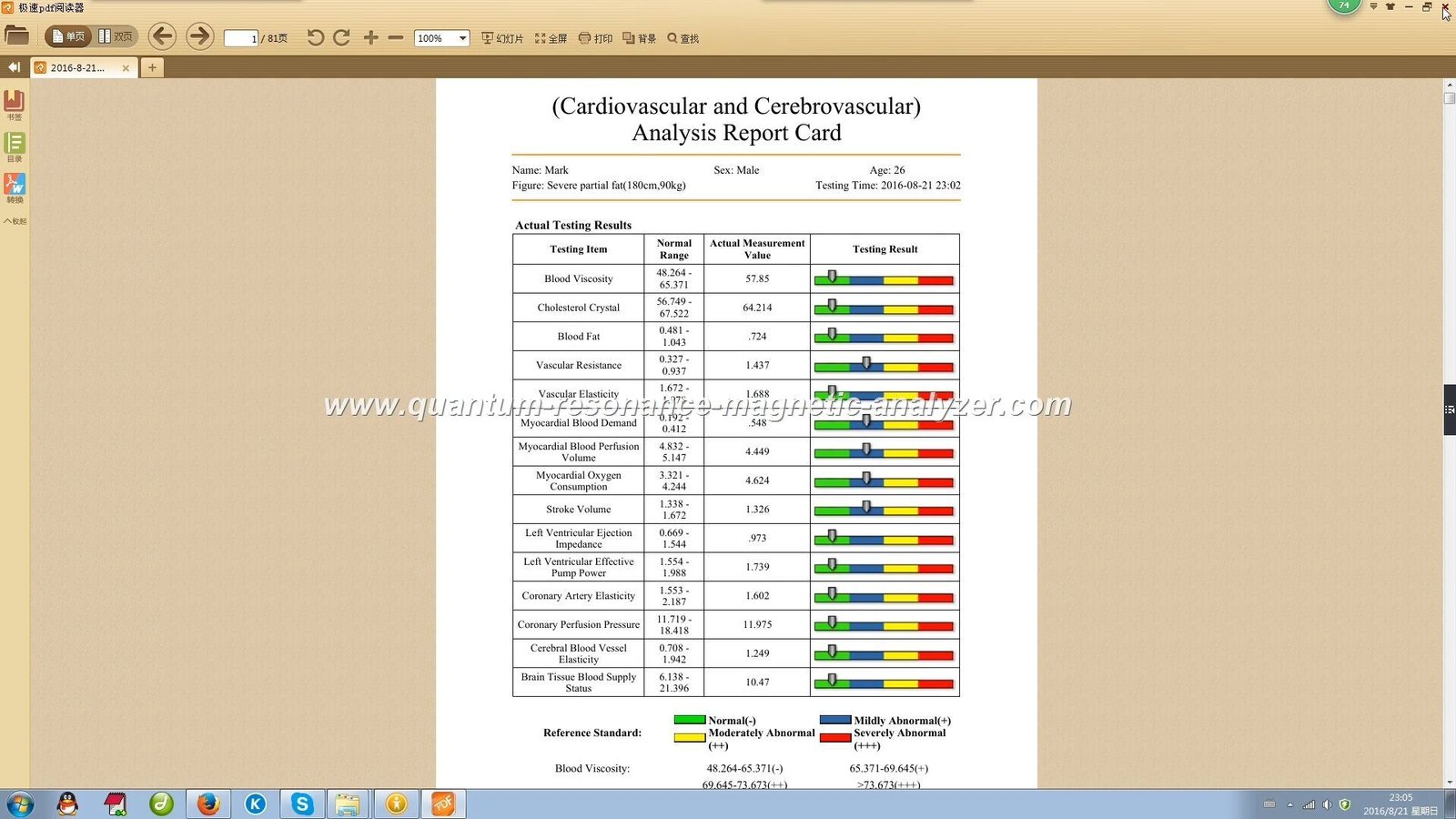
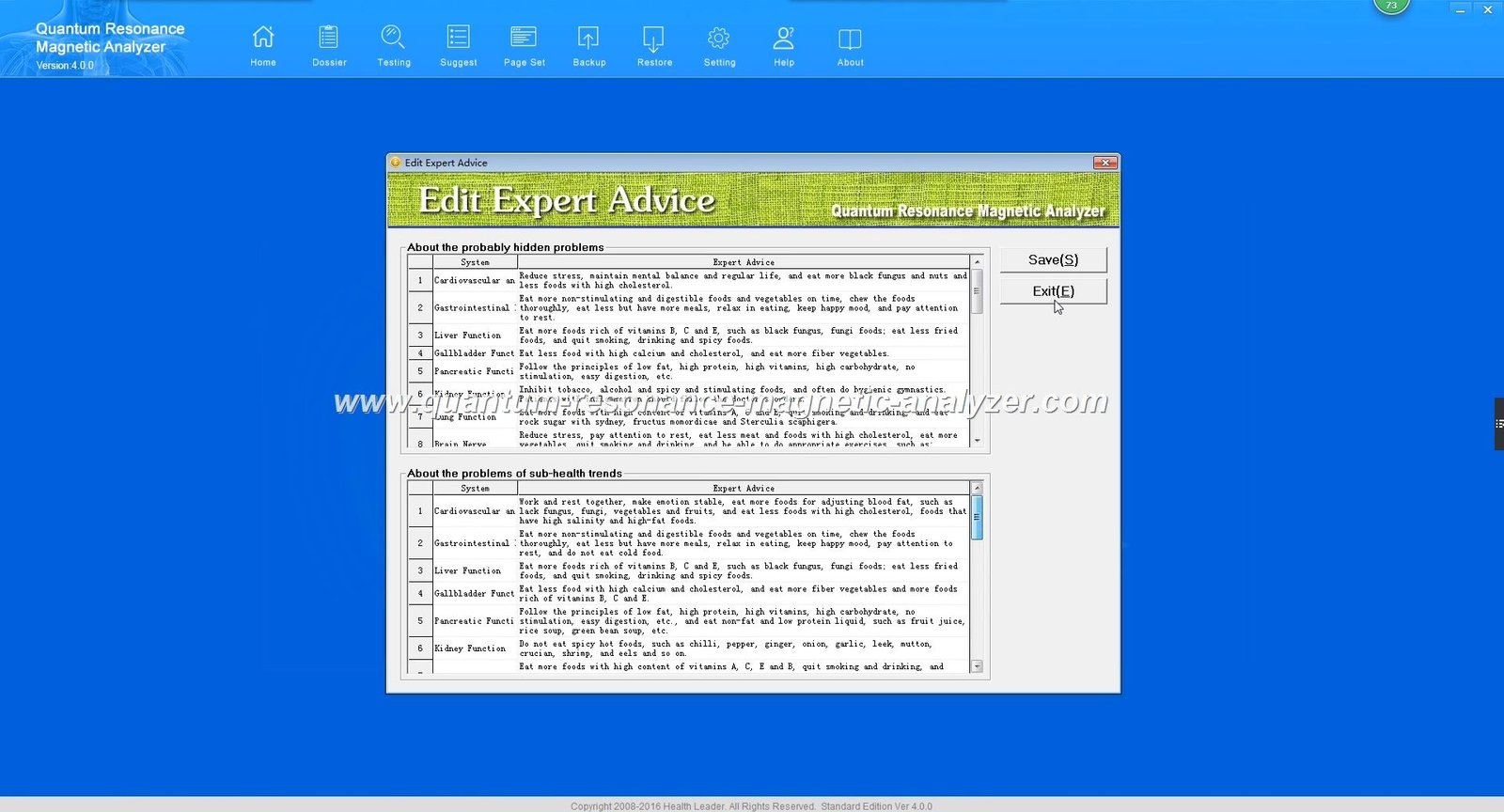
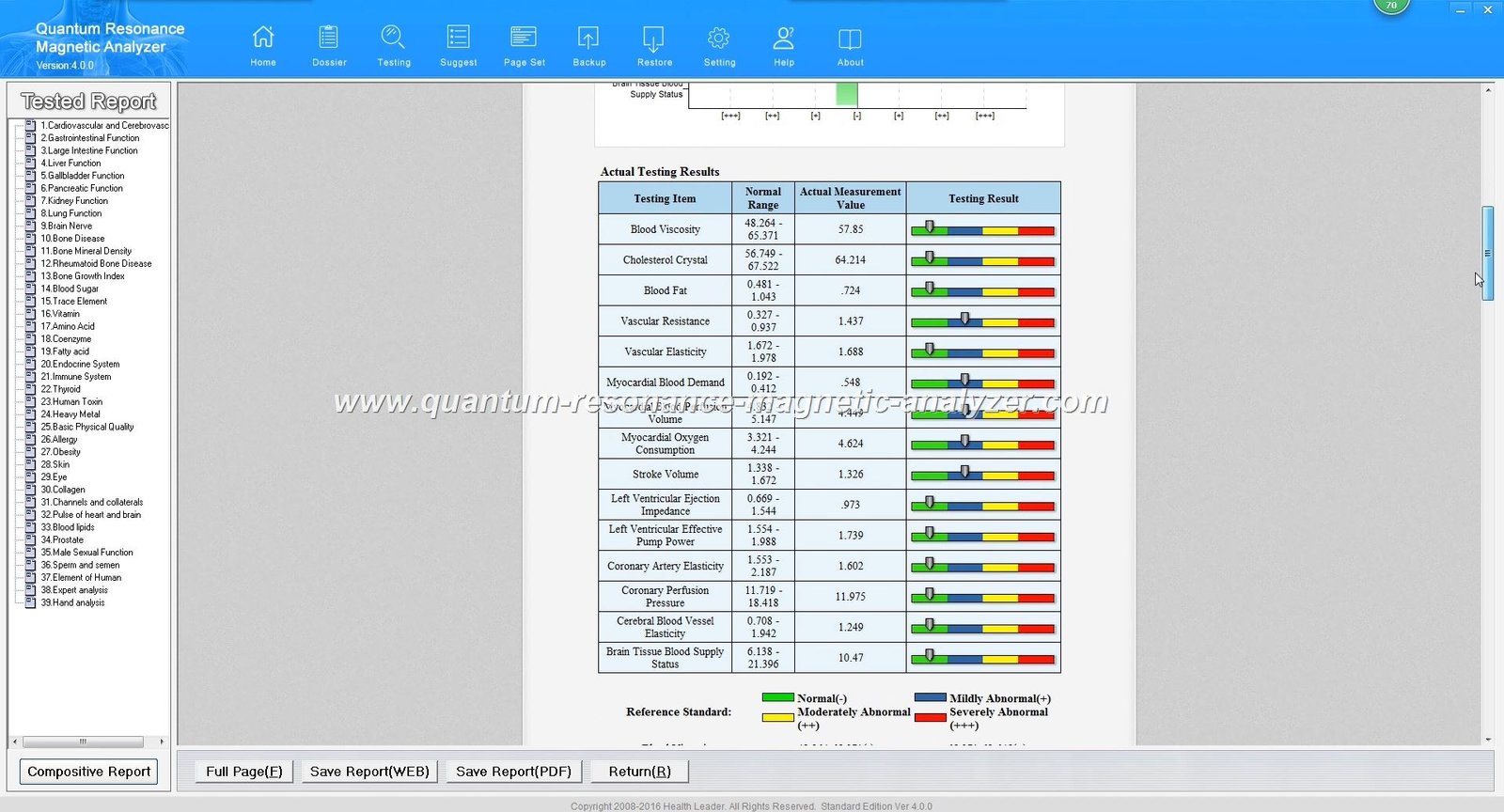
For visual references, we provide software report screenshots and report samples you can show clients on a tablet or printout (see the image assets below).
Minimum vehicle, workspace and mounting requirements for a mobile van deployment
Design the van as a single-person screening pod plus a small intake area. The essentials are:
Stable flat bench or small desk for the MK001 and laptop; bench must resist lateral movement when the van doors open and close.
One stable chair for the operator and one comfortable chair or stool for the client, positioned so the client can sit still for the scan without turning or twisting.
Lockable storage for the unit and peripherals when the vehicle is in transit; the analyzer should be secured in a cushioned case or fixed cabinet to prevent shock damage.
Easy access to power outlets and ventilation for the laptop and any UPS/inverter equipment; avoid placing equipment near vehicle exhaust or heat sources.
Keep the screening area free of strong electromagnetic sources such as high-power radio transmitters or unshielded motors while scanning; mobile environments can be noisy, so choose your street-side park position carefully.
Power and electrical checklist for safe, stable operation in a van
Reliable power is the single most common cause of field failures. We recommend this minimum checklist:
Primary AC source: shore power from the van’s inverter or a mains hookup, protected by a surge suppressor.
Local backup: an uninterruptible power supply (UPS) sized for the laptop and analyzer so you can finish a report if shore power drops. Use a quality UPS that produces a clean sine-wave output for electronics.
Isolation and grounding: a fused distribution board or a certified electrician should install outlets used for the MK001 and laptop. Avoid running sensitive equipment from unregulated generators without a voltage stabiliser.
Daily power check: before sessions, verify outlet voltage stability and UPS charge level. If you use an inverter, test it under load with the same equipment you will run.
If a formal electrical installation certificate for the van is required locally, engage a qualified technician. We do not supply on-site electrical certification as part of the unit; confirm local compliance separately.
PC, software and connectivity requirements to run Quantum Analyzer Software 2026 in the field
Practical field setup advice:
Use a laptop with a reliable battery and an external mouse. Disable automatic OS updates during clinics.
Install the analyzer drivers and software before you leave base; perform at least one full test scan and report generation in the van during setup day.
Connectivity: design for an offline-first workflow. Use local encrypted storage for client files and batch-sync to a secure cloud or office server when stable mobile data or Wi‑Fi is available.
Preparation and daily setup steps for a mobile screening session (step-by-step)
Secure the analyzer on its bench or in its fixed mount. Leave connectors accessible but tidy cables to prevent snagging.
Power sequence: turn on UPS/inverter, connect laptop, then power the analyzer driver (follow the device manual). Confirm software starts and detects the MK001 before opening for clients.
Quick calibration: run the vendor-recommended self-check or diagnostic; if you have a test sample or procedure from MAIKONG, run it. If a manual is missing for this model, contact MAIKONG support before clinical use.
Confirm client consent forms are ready, translated as needed, and that the client understands the screening is for informational health management only (not a medical diagnosis).
Perform the scan in a seated, relaxed client; avoid metal jewelry or electromagnetic devices on the client during scanning where the manual advises removal.
Save and encrypt the client file locally, print or display the report, hand over the printed report with verbal explanation and a reminder about limitations and follow-up options.
Client flow and data handling in a mobile van: intake, scan, report handover and consent
Use a three-step flow to reduce errors: 1) intake and consent; 2) scanning; 3) report handover and referral advice. Keep intake forms concise and record explicit consent to store and transmit health data. For data protection:
Store files on an encrypted folder or disk while in the field.
Use unique ID codes rather than names on exported datasets when sharing for quality review.
Where you must sync to the cloud, use a secure, password-protected channel and perform syncs only on secure networks.
Protecting hardware and data in transit: mounting, vibration isolation and encryption notes
Transport protection is as important as in-van mounting:
Hardware: secure the MK001 inside a padded, lockable case or fixed cabinet. Use foam inserts or vibration-damping mounts for the instrument during transit.
In-van mounting: bolt or clamp the bench and add anti-slip mats. For repeated bumpy roads, add a rubber isolation layer under equipment racks to reduce shock transfer.
Data encryption: keep client files encrypted at rest. Use full-disk encryption on laptops and require strong local passwords. Back up encrypted copies to an office server when possible.
Routine maintenance, cleaning and software update process for mobile units
Follow the manufacturer’s cleaning and maintenance guide supplied with the MK001. As a general routine:
Weekly: run diagnostic checks and confirm report generation functions correctly.
Software updates: apply updates in a controlled setting (office or workshop) after backup; do not update mid-clinic. If you do not have an updater procedure or release notes, request them from our support team.
MAIKONG publishes maintenance guidance for its devices; consult the product maintenance page and follow any model-specific instructions before attempting internal cleaning. (See our software page link below.)
Common operational limits and how to explain them to clients (what the device can and cannot do)
Be transparent with clients. Explain that the MK001 provides an informational health-management report and that it is not a substitute for professional medical diagnosis or emergency care. Our company materials state that the family of quantum analyzers produces multi-item reports; these are intended to support screening, education and wellness planning, not definitive diagnostic decisions. Use plain language when explaining limitations and always recommend follow-up with a clinician when the report indicates concern.
Compact specification table (supplier-declared)
Quick decision checklist before you buy or deploy a mobile MK001 unit
Do you have a stable, lockable bench and a secure place to mount or store the MK001 inside the van?
Can you provide clean, surge-protected power with a UPS for graceful shutdowns?
Will a Windows laptop (supported OS) be available and configured to run Quantum Analyzer Software 2026?
Have you prepared consent forms and a data-encryption plan for client files?
Do you understand and can you communicate the device’s screening purpose and limits to clients?
Useful internal links and visual assets (company-supplied)
Software and report screens you can show clients are available on our site:
We supply MK001 technical and software compatibility data, but operational performance in a mobile environment depends on van build, local electrical stability and operator training. Local electrical installation rules and certification requirements are not included with the device and must be handled locally.
MAIKONG’s product information is company-declared. Where medical or regulatory claims are needed—for example, whether the device is authorised for diagnostic use in a given country—you must verify local regulatory status yourself. The device’s screening reports support health management and education only; they do not replace clinical diagnosis or treatment.
Contact for configuration and quote: lucy@quantumanalyzer.ng | WhatsApp/phone: +8613510907401
Local compliance note: The information here is for health-management and operational planning only. The MK001 screening results are not a medical diagnosis and should not be used as a substitute for professional clinical assessment or emergency care. Follow local regulations for electrical installation, client data protection and medical practice.
This content is provided for learning, information sharing and professional communication only. It is not medical advice and is not a basis for treatment or diagnosis. Confirm suitability, operation and purchasing requirements against the product manual, local regulations and qualified professional guidance.
If you want a recommended mobile configuration (mounting options, UPS sizing advice and a pre-configured laptop image), contact our sales team for a tailored quote and technical checklist. Pricing is available on inquiry.