
Categories
- FQA (244)
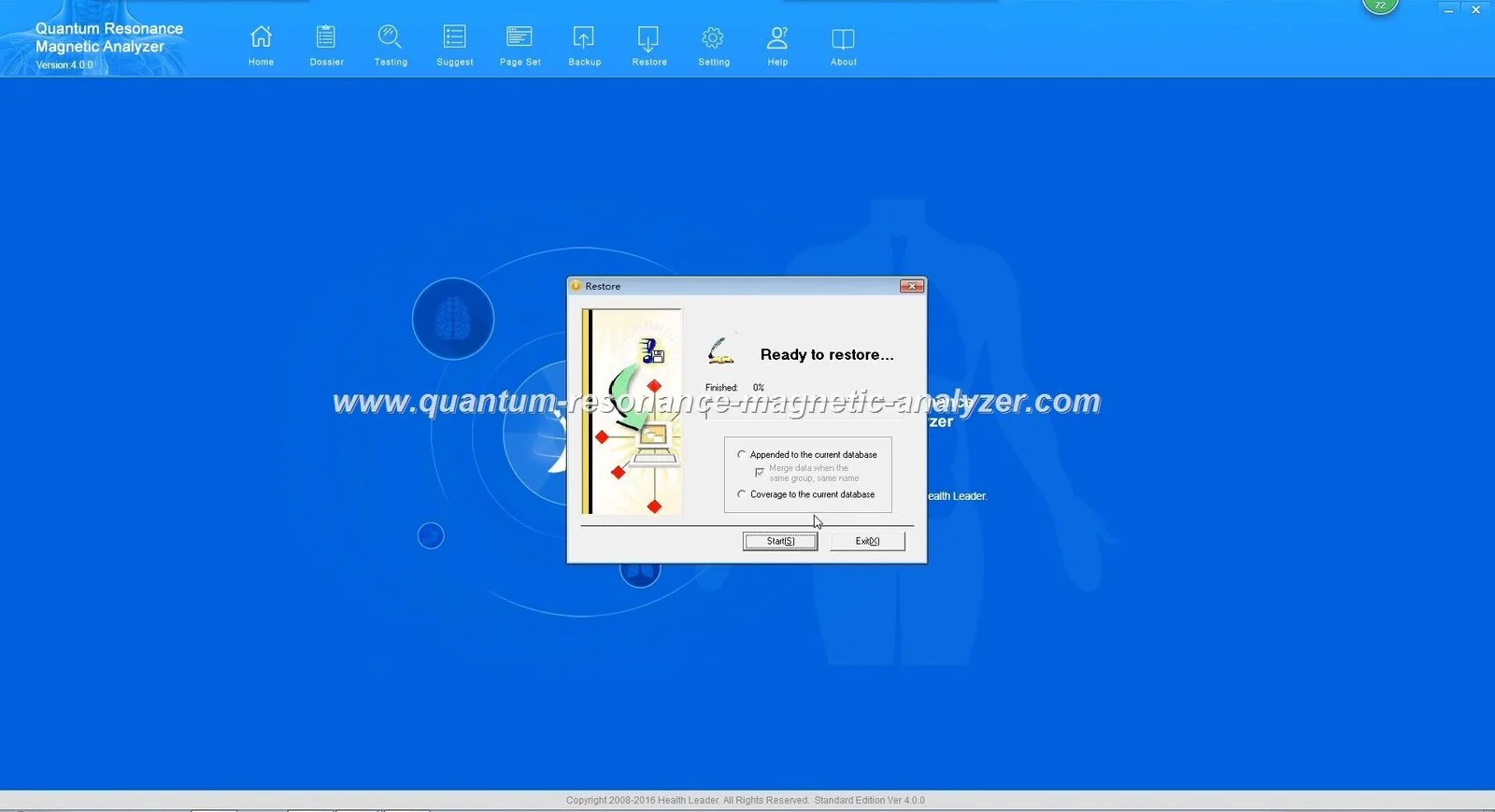
Keep a simple, testable backup chain (local + offsite), run updates first in a test machine or during a low-traffic window, verify report output and language settings immediately after the update, and keep a documented rollback plan with clear triggers. Follow short training and a one-page communication checklist so clinical work and patient appointments are not interrupted. Below we explain how to apply each step to MAIKONG analyzers and what you should confirm with MAIKONG before updating live systems.
We write from our experience supporting clinics that run quantum analyzers and other diagnostic systems. Clinics in Nigeria that rely on MAIKONG devices benefit from lifetime free software upgrades and multilingual support, but must still manage their backups and update procedures so patient service is uninterrupted. The recommendations below are practical, prioritised and written so you can adopt them without imposing a full procurement process.
Design a backup chain with at least two independent copies: one fast local copy for quick recovery and one offsite copy for disaster recovery. Local copies let you recover quickly if an update breaks reports; offsite copies protect you from fire, theft or ransomware.
| Location | Strength | Limitation | Suggested cadence |
|---|---|---|---|
| Local machine (disk or external drive) | Fast restore; ideal pre-update snapshot | Vulnerable if device fails or is encrypted by malware | Snapshot before every update; nightly incremental backups |
| Onsite NAS or clinic server | Centralised, versioned copies for multiple devices | Requires basic IT maintenance and UPS for power protection | Daily incremental, weekly full |
| Offsite cloud or remote storage | Off-premise protection; survives local incidents | Dependent on reliable internet and proper encryption | Daily or weekly depending on volume and connectivity |
Concrete file targets to include in every backup: the analyzer software database and report folder(s). On Windows systems the database frequently lives under Program Files or a specific application folder—confirm the exact paths for your MAIKONG model before you rely on an automated script.
Never apply a software upgrade first on the clinic’s primary machine. Use one of these simple approaches:
Validation checks should include: successful database connection, sample report generation, correct PDF rendering, selected language pack operation, and communication with any integrated printers or LIMS. If you do not have a test machine, schedule a maintenance window and ensure a verified backup exists immediately beforehand.
Pick time windows that minimise impact: outside core clinic hours, early mornings before patient intake, or between appointment blocks. For busy clinics we recommend:
Always notify staff in advance and have a contingency plan to use an alternate device or manual intake forms during the brief service window.
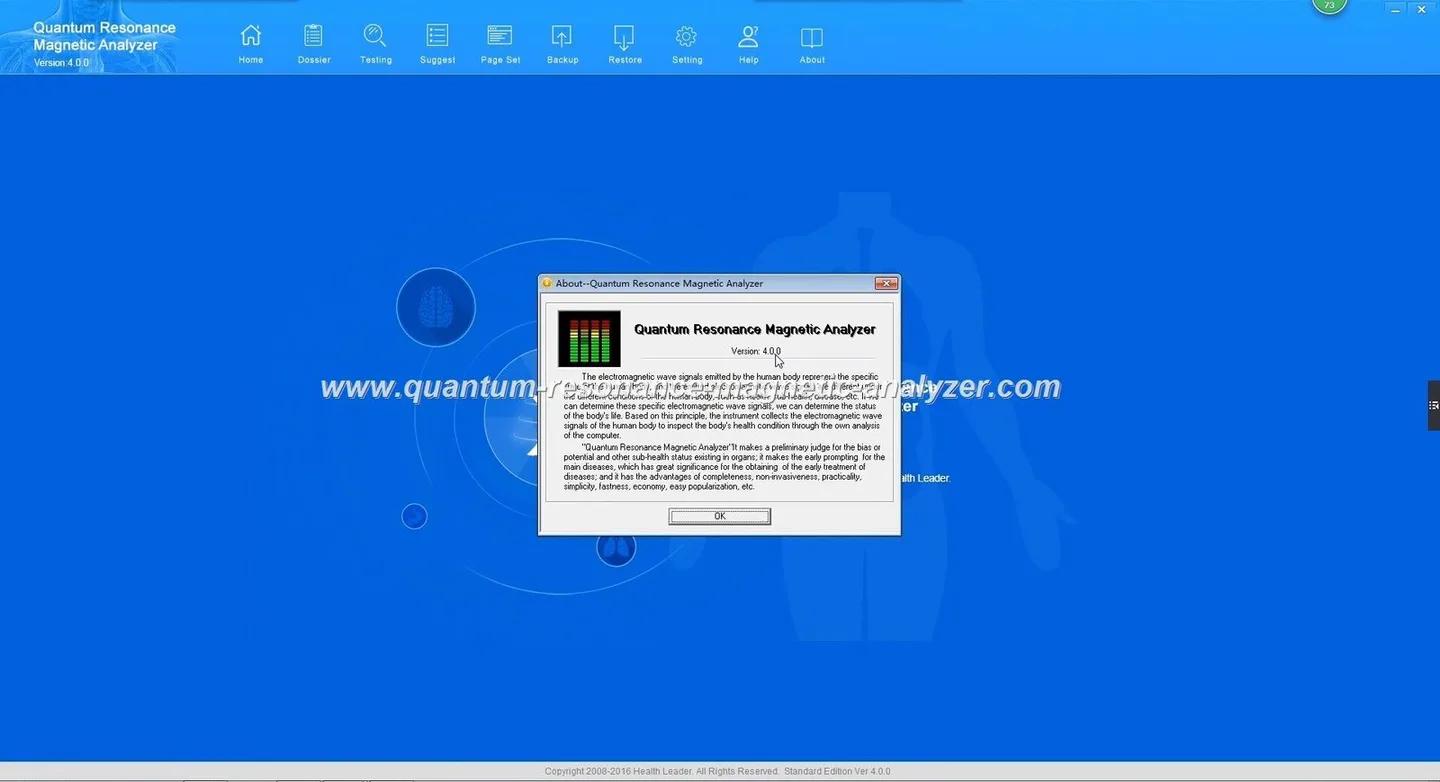
Report format and language options are the most visible risks after an update. Our recommended verification run immediately after installing an upgrade:
If you spot mismatches or blank pages, restore the pre-update database backup and report the issue to support; do not resume clinical reporting until you confirm consistency.
Write a one-page standard operating procedure (SOP) that contains:
Also identify the person authorised to approve rollback. The SOP should be stored with version control so changes are tracked.
Front-desk and clinical staff must know how updates are delivered and what notifications look like. Keep training short and focused:
Clear communication reduces frustration. Use this quick checklist before a scheduled update:
MAIKONG provides lifetime free software upgrades and multilingual support (30+ languages) as part of our product offering. Our manufacturing and quality declarations include ISO 9001, ISO 13485 and CE marks as reported in company materials. We base the procedural advice above on common backup best practices combined with these product facts and typical clinic workflows. Where device-specific file locations or update steps are required, confirm the exact paths and procedures in your MAIKONG model manual or with our support team before performing live operations.
Software updates can change report templates, fonts and language layouts. Backups may fail if storage media are full or permissions are incorrect. Internet-dependent offsite backups require reliable connectivity—plan for offline backups where network reliability is a concern. MAIKONG’s accuracy statements and product capabilities are company-reported; reports and analyzer outputs are for health-management reference and do not replace professional medical diagnosis. For any clinical decisions, consult a qualified health professional.
To request configuration advice or an upgrade package, send a brief RFQ describing your model, current software version, number of units, clinic location and whether you need multilingual or offline installers.
Next step (request an RFQ or configuration advice): Email us with model and configuration details: lucy@quantumanalyzer.ng
Localised disclaimer: The information here is intended for health management and operational planning. Analyzer reports and procedures are not a substitute for professional medical diagnosis or treatment.
This content is provided for learning, information sharing and professional communication only. It is not medical advice and is not a basis for treatment or diagnosis. Confirm suitability, operation and purchasing requirements against the product manual, local regulations and qualified professional guidance.
Contact · WhatsApp · +8613510907401
Contact us when any of the following apply: